Finding an order in the Orders page
Quickly locate specific orders in BladePRO using the Quick Search bar or advanced filtering options.
Last updated 3 months ago
Access the Orders page
The Orders page appears immediately after you log in to BladePRO. To navigate there from anywhere else in the platform, click Orders from the left menu.
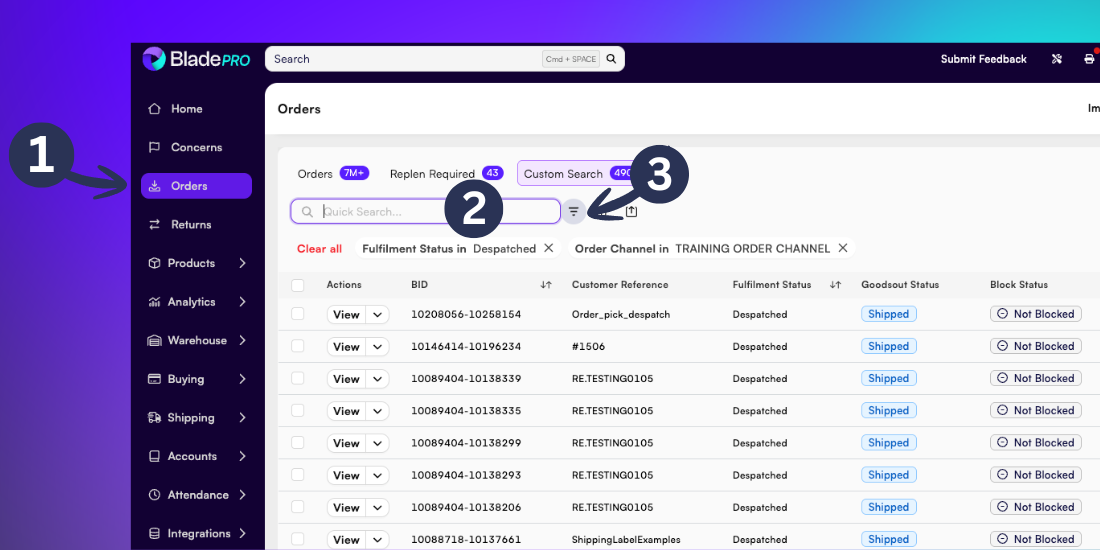
Quick Search
If you know the Customer Reference number, Quick Search is the fastest way to locate an order. Type the Customer Reference number into the search bar and then click Enter to display matching results.
Using filters for advanced searches
The Filter feature lets you search by multiple criteria simultaneously, if you don’t know the Customer Reference number this is the easiest way to locate an order.
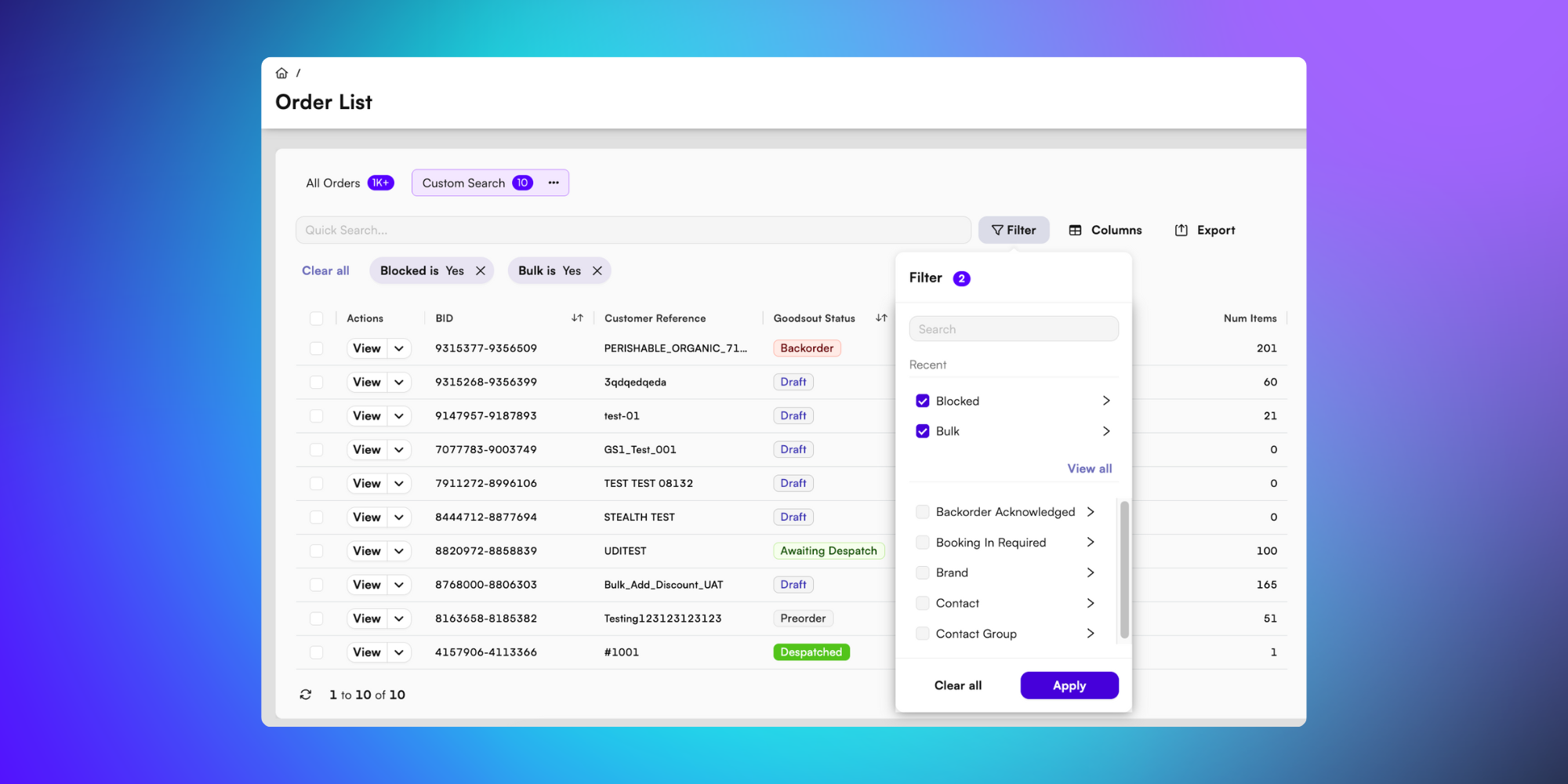
Click Filter on the right side of the Quick Search bar
Select your filtering options from the dropdown menu, either :
Typing keywords in the search bar to find specific filter options
Or click View all to browse the complete list of available filters
Combine multiple filters to create precise searches if required
Click Apply to update the Order List with your filtered results.
Caution: Your selected filters remain active until you clear them or apply a new filter. If your Order list seems incomplete, check your filters and remove them using the Clear all option.
Related articles
Still need help? Share an idea