Understanding Units of Measure (UoMs)
Units of Measure (UoMs) tell BladePRO how a product is packed, from a single unit up to a full pallet. Setting up UoMs correctly keeps your stock figures accurate and ensures orders are booked in, picked and despatched in the right quantities. This article explains what each UoM level means and how to use UoMs when creating products and purchase orders.
Last updated About 21 hours ago
UoMs in BladePRO
A UoM is the level at which a product is packed and handled. BladePRO uses four levels: Each, Inner (Pack), Outer (Case) and Pallet.
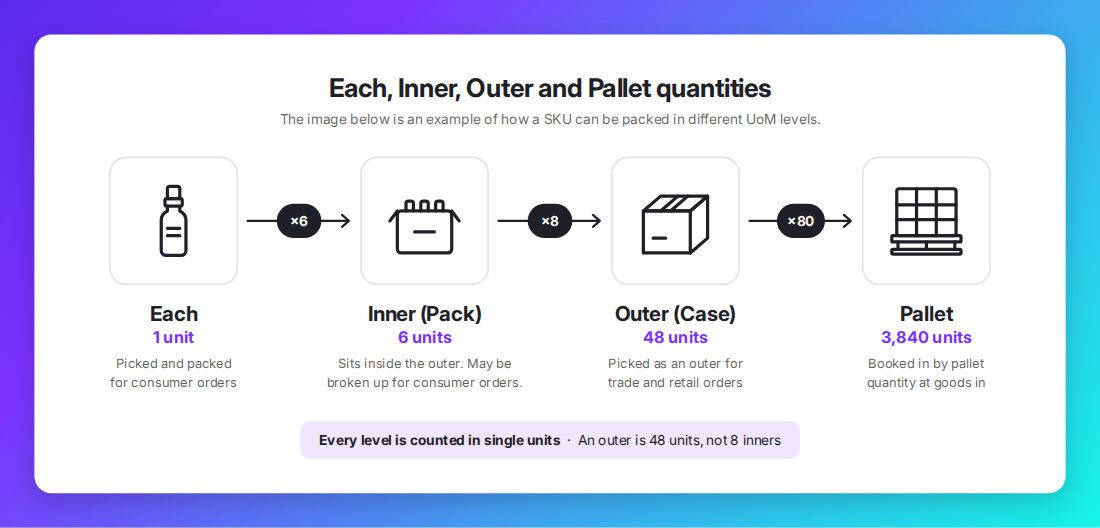
Every level is counted by the Each quantity (individual products) in BladePRO. When a UoM barcode is scanned, BladePRO counts the number of individual products set for that level.
Incorrect UoMs can lead to:
Stock figures that don’t match what’s physically in the warehouse
Overselling stock that isn’t available, or over-shipping orders
Delays and discrepancies when stock is booked-in at Goods In
Note: Always count down to the unit that is sold. If a saleable product is a 3-pack, and 5 of these 3-packs are boxed together, the quantity for that box is 5 - not 15.
Best Practice for UoMs
A UoM should always match how the goods physically arrive at our fulfilment centres.
Follow these guidelines to ensure that UoMs are accurate:
Only set up the levels being used
Only add an Inner, Outer or Pallet level if the product physically arrives packed that way. If Inner containers aren’t used, don’t add them.Check against real stock
Confirm quantities, dimensions and weights using a real packed Inner or Outer, not a supplier spec sheet.Give each level its own barcode
Never reuse the same barcode on more than one level, otherwise BladePRO won’t be able to identify the correct quantity of individual products.Keep UoMs up to date
Confirm that any changes are accurately reflected in BladePRO to avoid delays, stock discrepancies and additional costs.
Caution: If your supplier changes an Outer from 10 to 12 units but BladePRO wasn’t updated while using the same barcode, an order for 200 units could be picked as 20 Outers - overshipping 40 units.
When adding a product
When adding a new product in BladePRO, enter the details for the Each and enable the Inner, Outer and Pallet levels if required. Specify the total number of individual products the level holds, not the quantity of the level below it.
For example:
You’re adding a new product which comes packed in Inners, Outers and Pallets. Each pallet can hold 80 Outers which each contain 8 Inners with 6 products.
For further support adding a new product, revisit our support guide here
When creating a purchase order
Each SKU line on a purchase order has a Unit of Measure (DOQ type) selector, to specify the Each(s), Inners, Outers or Pallets for that SKU being sent. Choose the level that matches how the goods will physically arrive and enter the correct quantity for that level.
For example:
You’re sending in 960 bottles on a purchase order, packed in 20 Outers which each contain 4 Inners with 12 products.
For further support creating a purchase order, revisit our support guide here
UoMs for Linked products
A linked product is a separate SKU reworked from another product in the inventory, such as a 4-pack made from 4 single products. Once reworked, it’s stored and picked as a single item.
Follow these guidelines to ensure that UoMs for Linked Products are accurate:
Add a new product in BladePRO for the reworked multipack
If a multipack is sold as an item, set it up as a separate product. This prevents BladePRO from calculating stock for the multipack as individual Eaches, leading to overselling and stock variances.Only add the level it’s packed in
If a Linked Product is never palletised, don’t add a pallet level
For example:
You’re setting up the UoM quantities for the new 4-pack multipack. Only 3 4-packs fit inside the standard Inner. If the 4-packs Inner was also set to 12, stock would show 4 times what’s actually available.
Related articles
Was this helpful?
Still need help? Share an idea