Adding a new product
The word Product or SKU (Stock Keeping Unit) are both used interchangeably in BladePRO. Both are used to refer to the individual stock item that the warehouse will be handling.This guide will walk you through the steps for adding a new product (SKU) into BladePRO.
Last updated 3 months ago
Before you begin
Before you add your new product into BladePRO check that you have the following information about your product to hand:
A unique SKU name
Barcode
Product composition (main material and perishable/organic status)
Country of origin
Product dimensions
HS Code
Creating a new product from the Product List
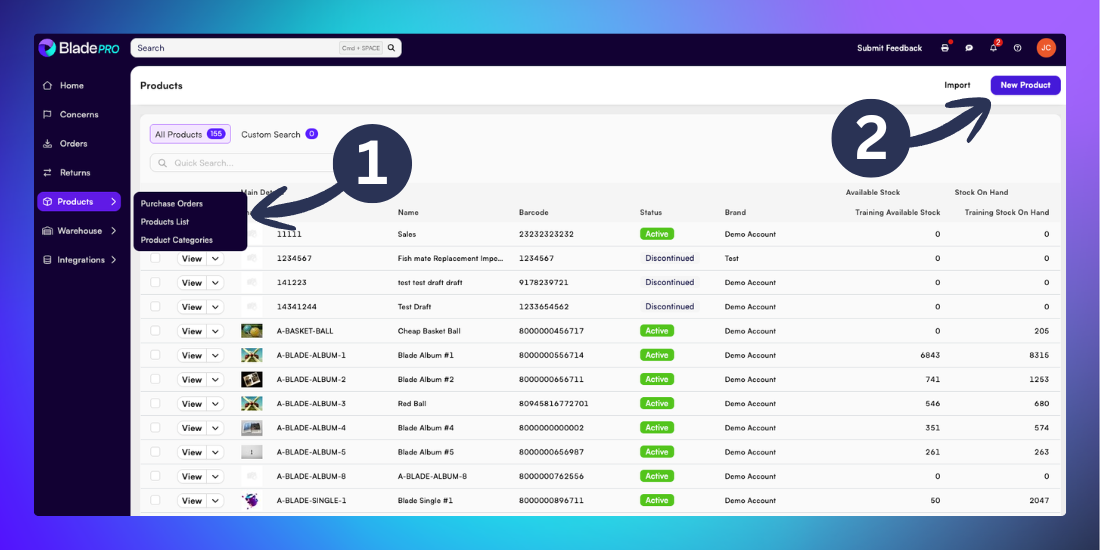
Click Products in the left-hand menu (the box icon) then click Product List
Click New Product
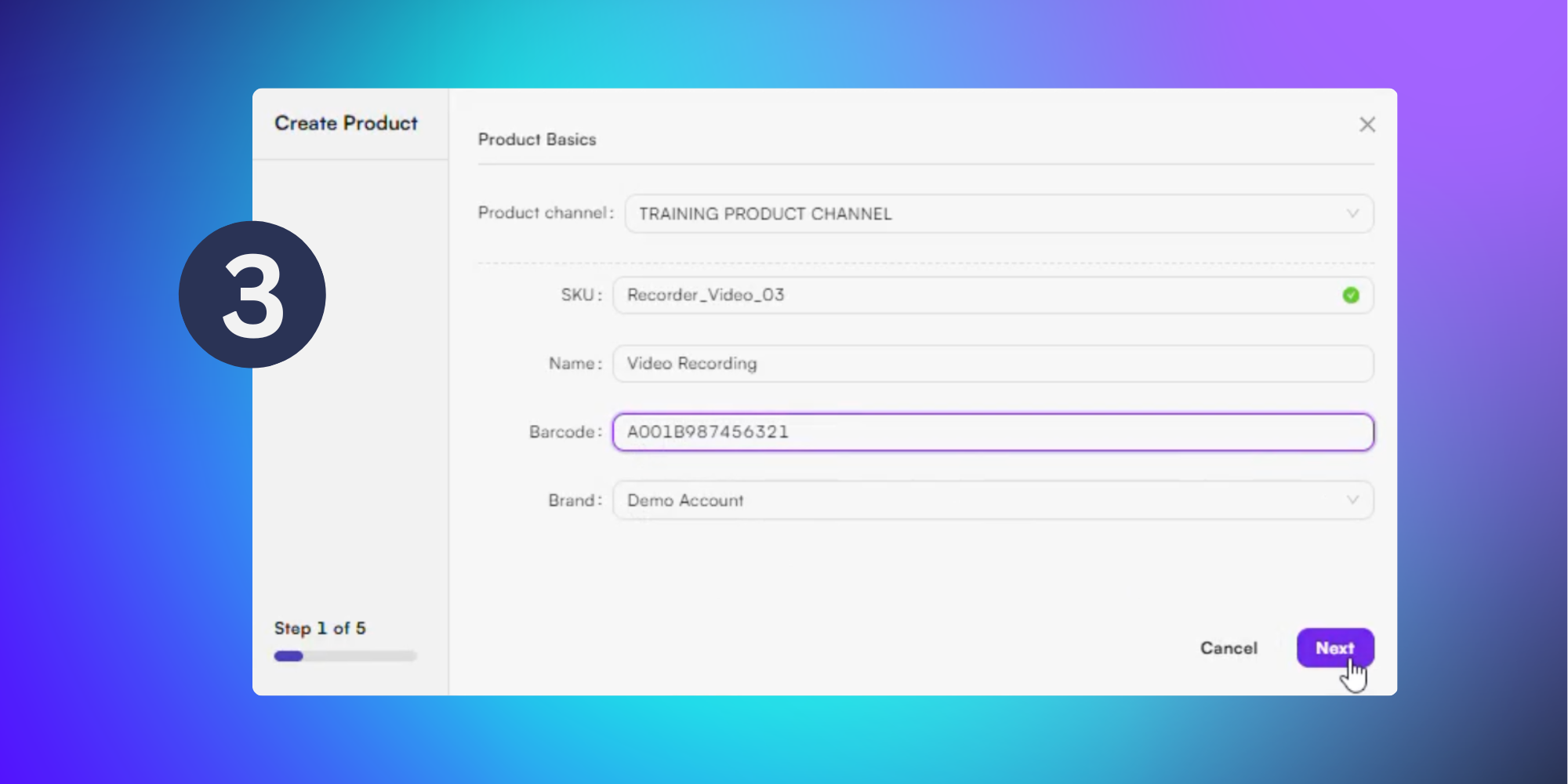
In the popup menu complete the following details:
Product channel - Choose from a dropdown list of preconfigured product channels.
SKU - Unique identifying name for the product.
Name
Barcode
Brand
Then click Next.
Caution: If the inputted SKU already exists a red icon will appear next to the SKU field with an error message underneath
Enter the Core Details
This section is used to capture the main attributes of the product.
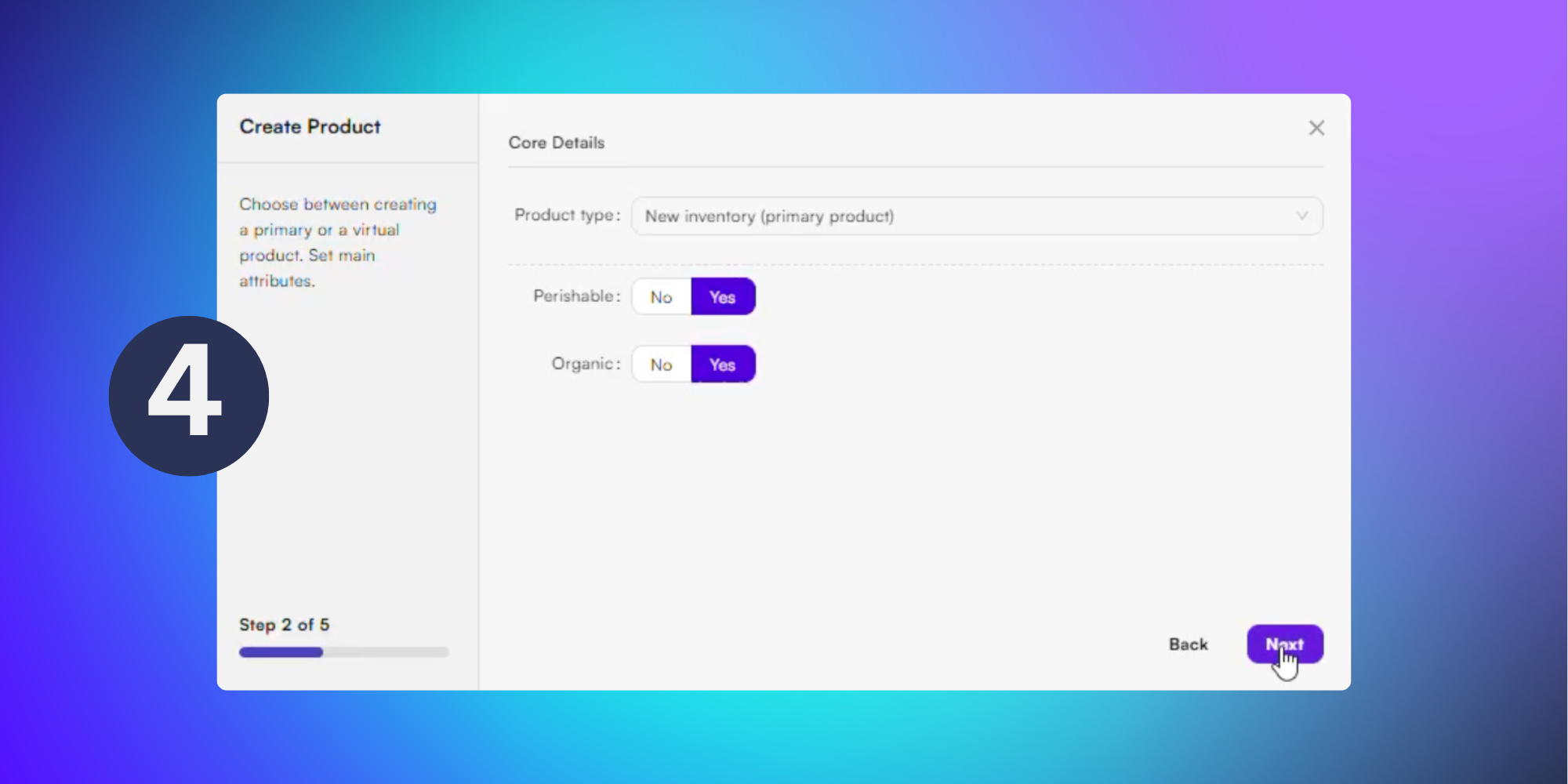
In the popup menu complete the following details:
Product type - Choose between a primary product or bundle product
Perishable - Yes/No
Organic - Yes/No
Then click Next.
Tip: A primary product refers to adding a new physical product in your warehouse inventory.
For further guidance creating a virtual product or bundle visit our support article here
Enter the Customs Details
This section is used to capture information which is required by customs when exporting the product.
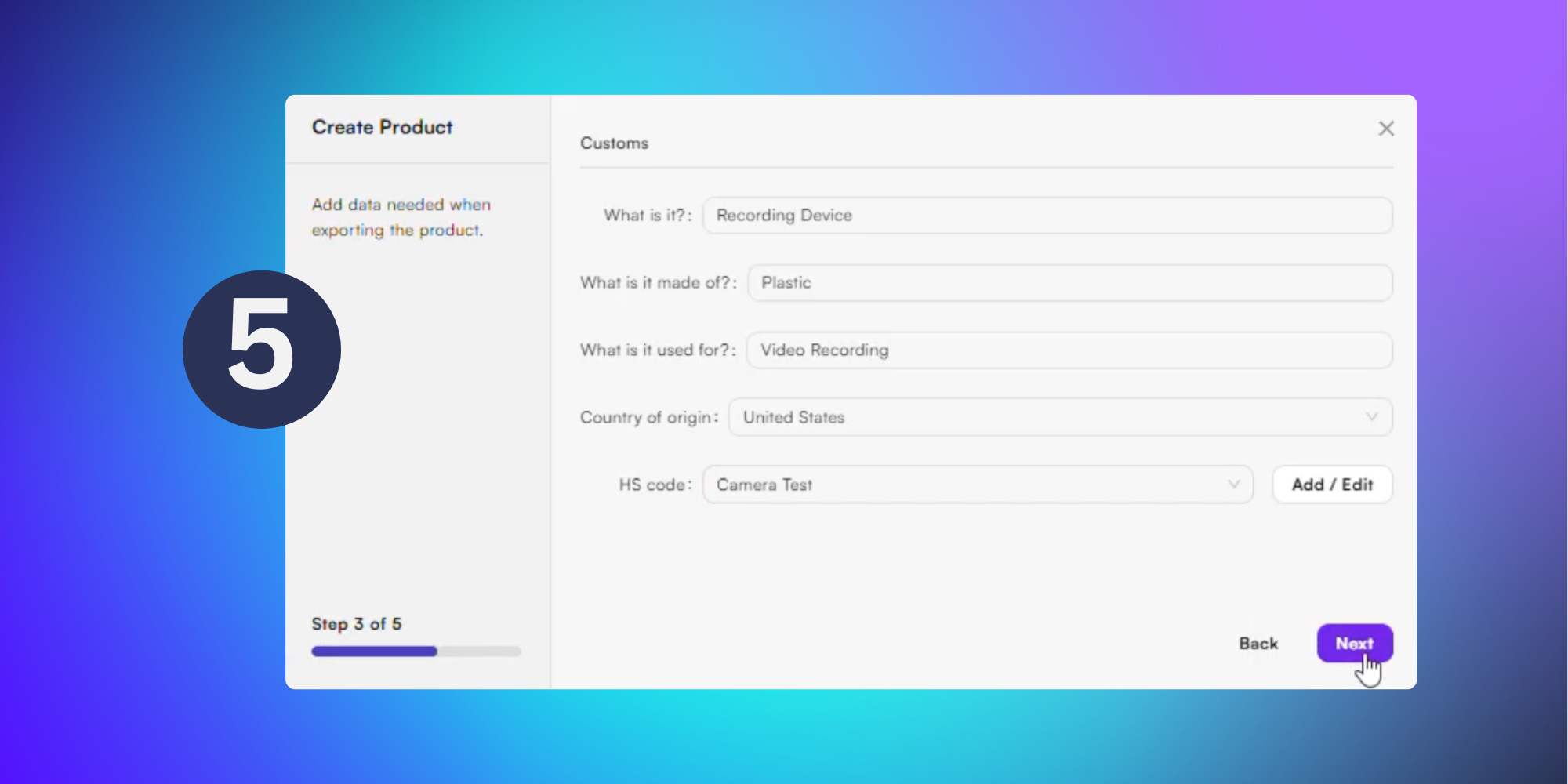
In the popup menu complete the following details:
What is it
What is it made of - The main material of the product (e.g. cotton, plastic, paper)
What is it used for
Country of origin
Harmonised Systems (HS) code - This is the universal ID number for the product type. It is mandatory for global trade so customs knows exactly what category of item is being shipped.
Then click Next.
Tip: If you don’t have a HS code for your product in BladePRO click the Add/Edit button to input a new HS code. For further guidance on HS codes visit our support article here
Enter the product dimensions
This section is used to capture the dimensions of the product. 'Each’ refers to the individual product sold. The Inner Case, Outer Case and Pallet dimensions can also be specified if required.
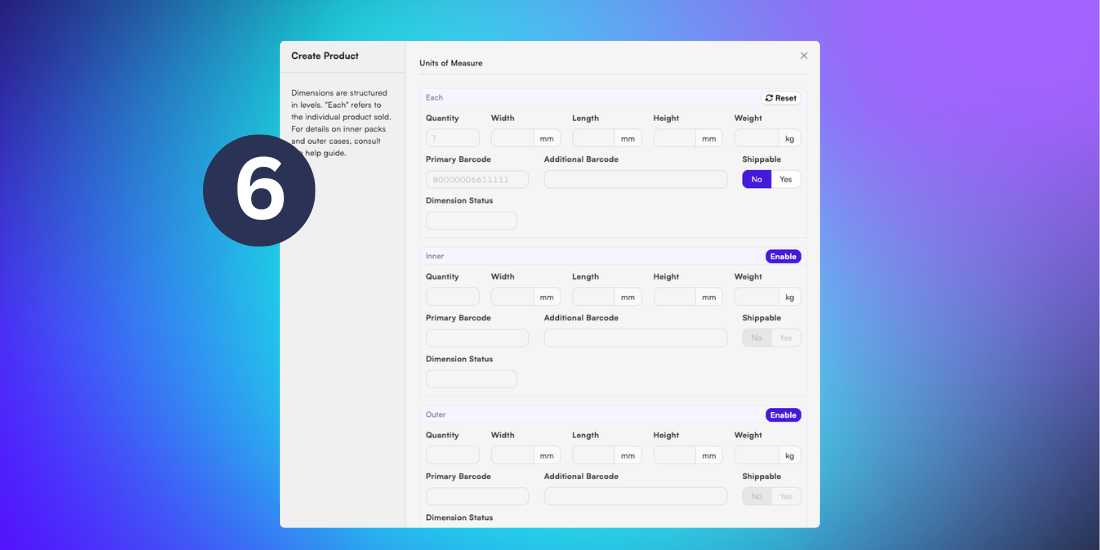
In the popup menu complete the following details:
Each/Product Dimensions - Width, Depth, Height, Weight
Shippable - Yes/No
If the product is able to be shipped in it’s packaging this is ‘Shippable’.
Inner Case, Outer Case and pallet dimensions - If required
Then click Next.
Review product summary
The popup will show a summary of the product details which have been added. Review the information and click Back to adjust, if necessary.
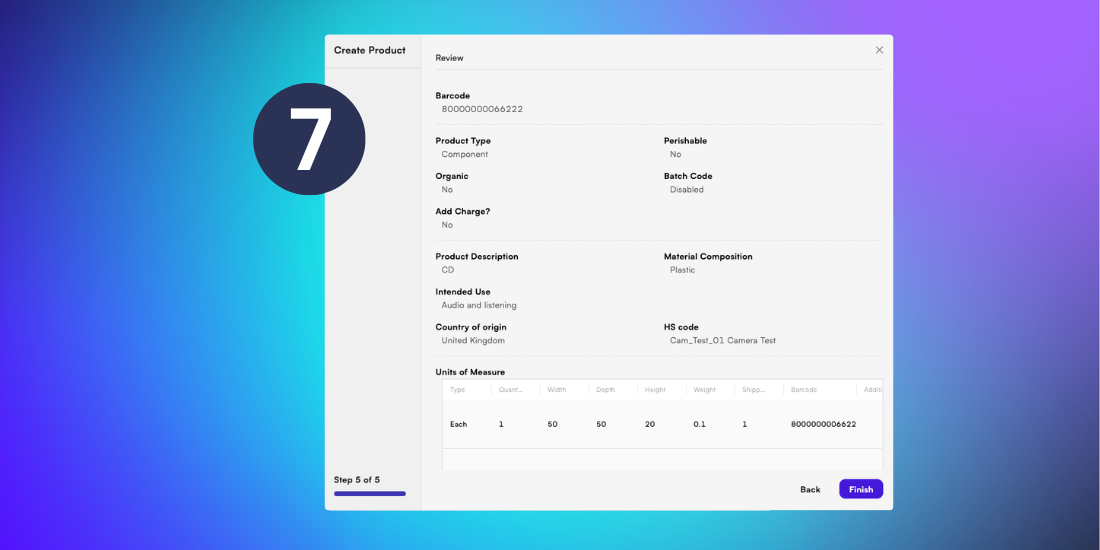
Once you’ve reviewed the information, click Finish to add your new SKU to BladePRO.
Related articles
Still need help? Share an idea