Arranging a goods-in shipment
Arranging a Goods-in shipment is the process of providing us with information about your purchase order and delivery so that we can prepare to receive it at one of our fulfillment centers.
Last updated About 1 month ago
Before your begin
To arrange your goods-in shipment you’ll need to open your purchase order. If you’re arranging a shipment after creating your PO, you’ll automatically be in the purchase order page.
If you’re trying to locate your purchase order from elsewhere in BladePRO:
Click Products in the left menu
Then Select Purchase Orders
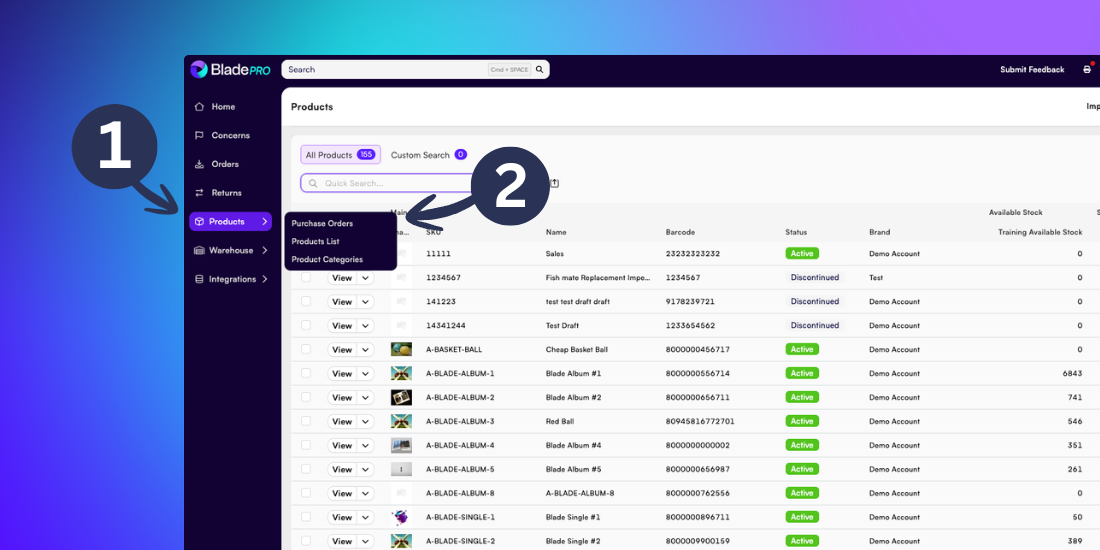
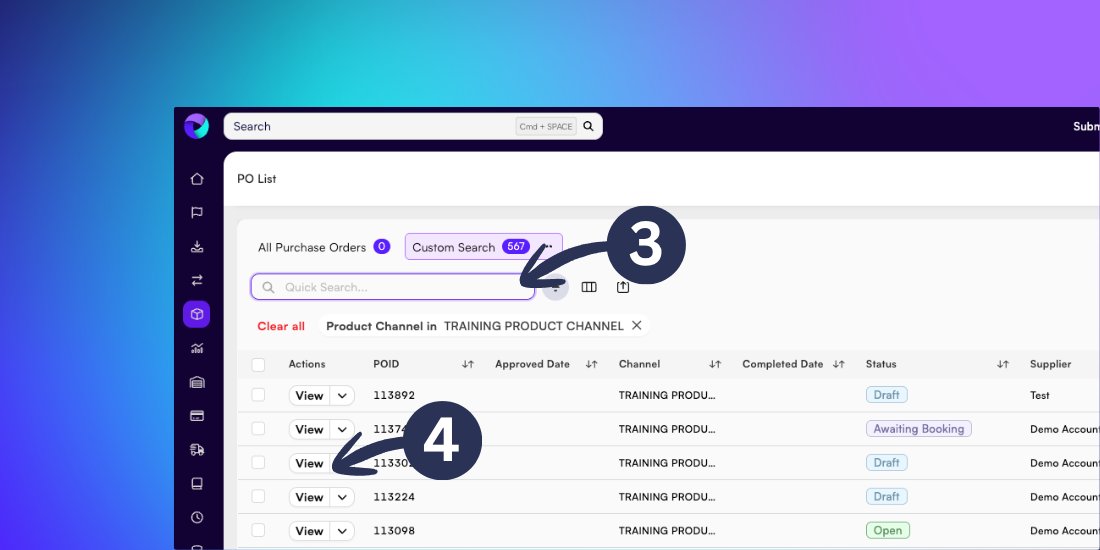
Type a POID (purchase order identification) number into the Search field to find your goods-in order, or click Filter to refine search results
Once you’ve found your PO, click View to go to the Purchase Order Details page
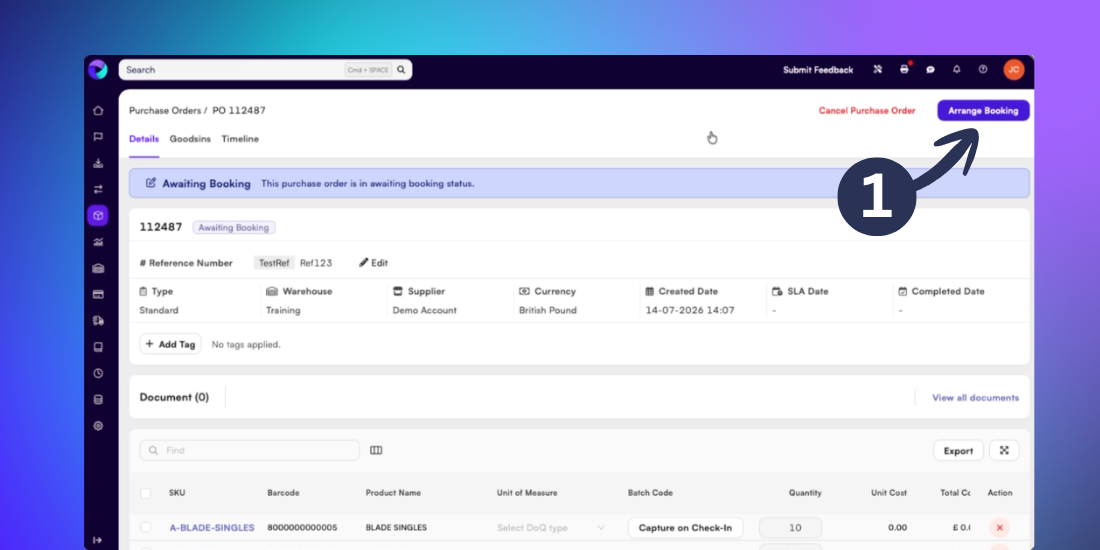
Arranging a goods-in shipment
Click Arrange Booking in the top right corner of the Purchase Order Details page
In the popup menu, select whether the delivery will be within a container, pallets or cartons. Then input the quantity.
When providing the quantity for the delivery, you only need to provide the quantity of the outermost container.
e.g. If a delivery includes palletised cartons, only provide the quantity of pallets used.
If you know the shipping company for the goods-in, insert the company name and tracking reference number

Deliveries of 4 cartons or more require booking in.
This ensures that our goods-in team have the resource to process your shipment on your preferred date and time.
For deliveries that require booking in, use the calendar selector to choose a delivery slot:
Slots marked as Available are able to be booked and confirmed immediately.
Slots marked as On Request need to be approved by our operations team.
Once you have selected your preferred delivery slot, click Next to continue
If you select an On Request slot our operations team will review your booking and send you confirmation via email.
If we are unable to offer the slot you requested you will need to select an alternative date by clicking on Arrange Booking in your Purchase Order.
Review the information for the booking from the popup menu, then click Submit to confirm
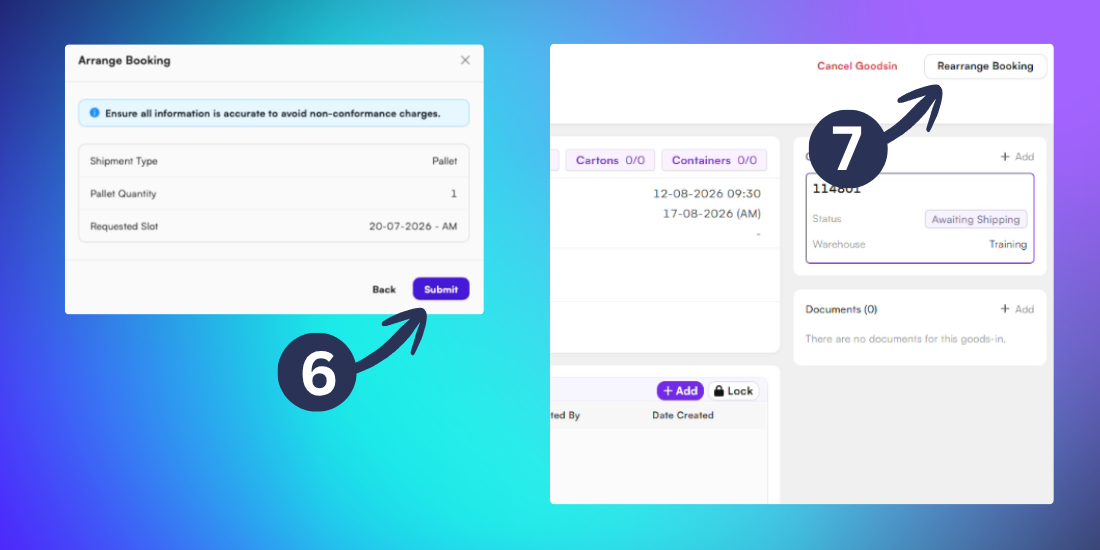
If you need to make changes to the quantity or date of a goods-in shipment, click the Rearrange Booking button on the Purchase Order page.
If the quantity of the shipment is increasing, this will need to be approved by our operations team to ensure that we can still fulfill your original delivery slot.
Tracking your Purchase Order
Once your booking is confirmed you can check on the status of your purchase order at any time from the Purchase Orders page.

The following statuses will display as your delivery is processed at our fulfilment centre:
Downloading the IDN document
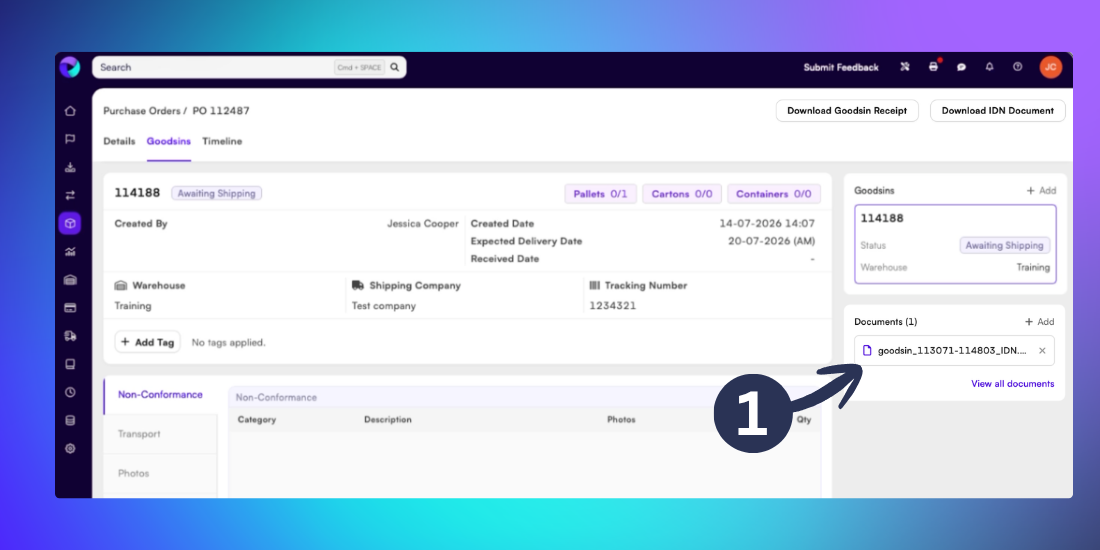
Once your booking is confirmed you can access your Inbound Delivery Number (IDN). It’s important that this document is attached to your shipment so that our goods-in team can process your delivery efficiently when it arrives at our fulfillment centre.
Please note: Non-conformance charges may apply if an IDN is not applied to your shipment.
To access your IDN document, click on the Goodsin tab in your Purchase Order then download the file from the Documents panel, or by clicking the Download IDN Document button in the top right.
For further information about our client guidelines for goods-in, contact your Account Manager.
Related articles
Still need help? Share an idea