Setting up Multi-Factor Authentication (MFA)
Multi-Factor Authentication (MFA) adds an extra layer of security to your BladePRO account by requiring two methods of verification when you sign in. This protects your account even if someone gains access to your password.
Last updated 13 days ago
Authentication methods
When you log in to BladePRO for the first time, you’ll need to choose your second authentication method. You can choose from:
Google Authenticator (or similar authenticator app - e.g. Microsoft Authenticator)
Security Key
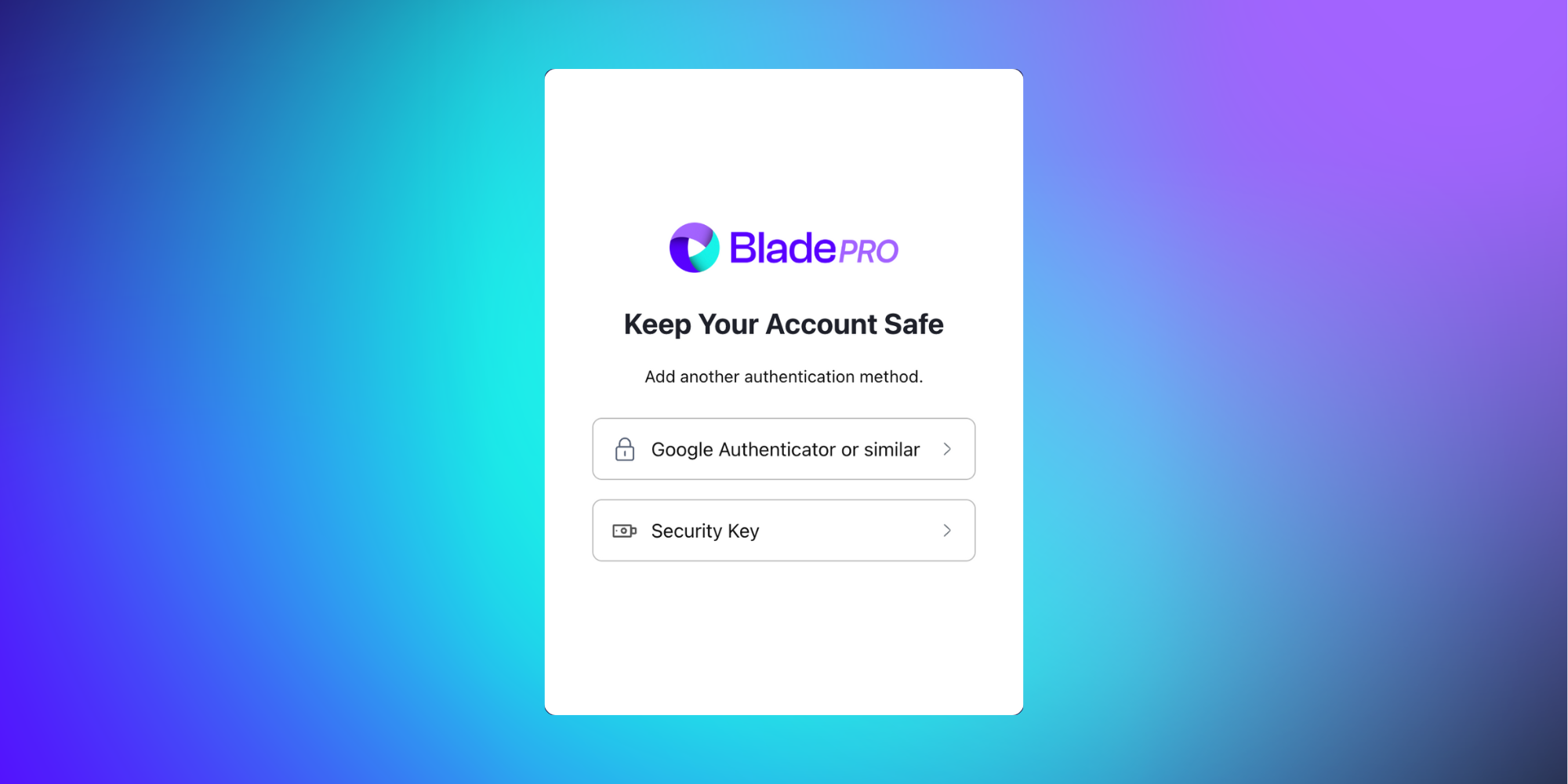
Set up an authenticator app
Select Authenticator app as your MFA method
Scan the QR code using your authenticator app on a trusted device
Enter the generated one-time code in the Enter your one-time code field
Click Continue
Save your recovery code in a secure location
Click Continue after storing your recovery code
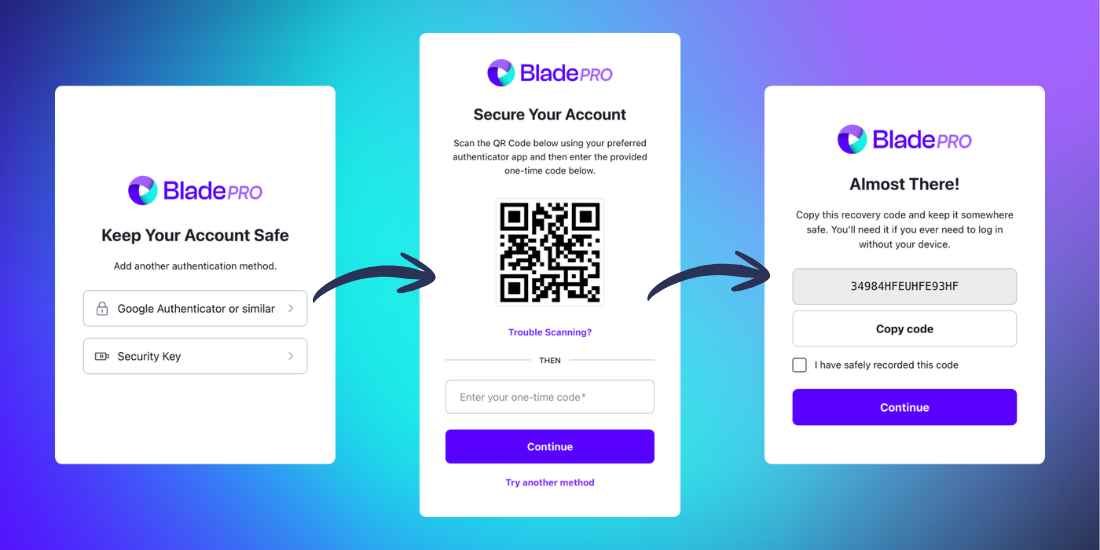
Caution: Store your recovery code safely. You'll need this code to access your account if you lose your authenticator device.
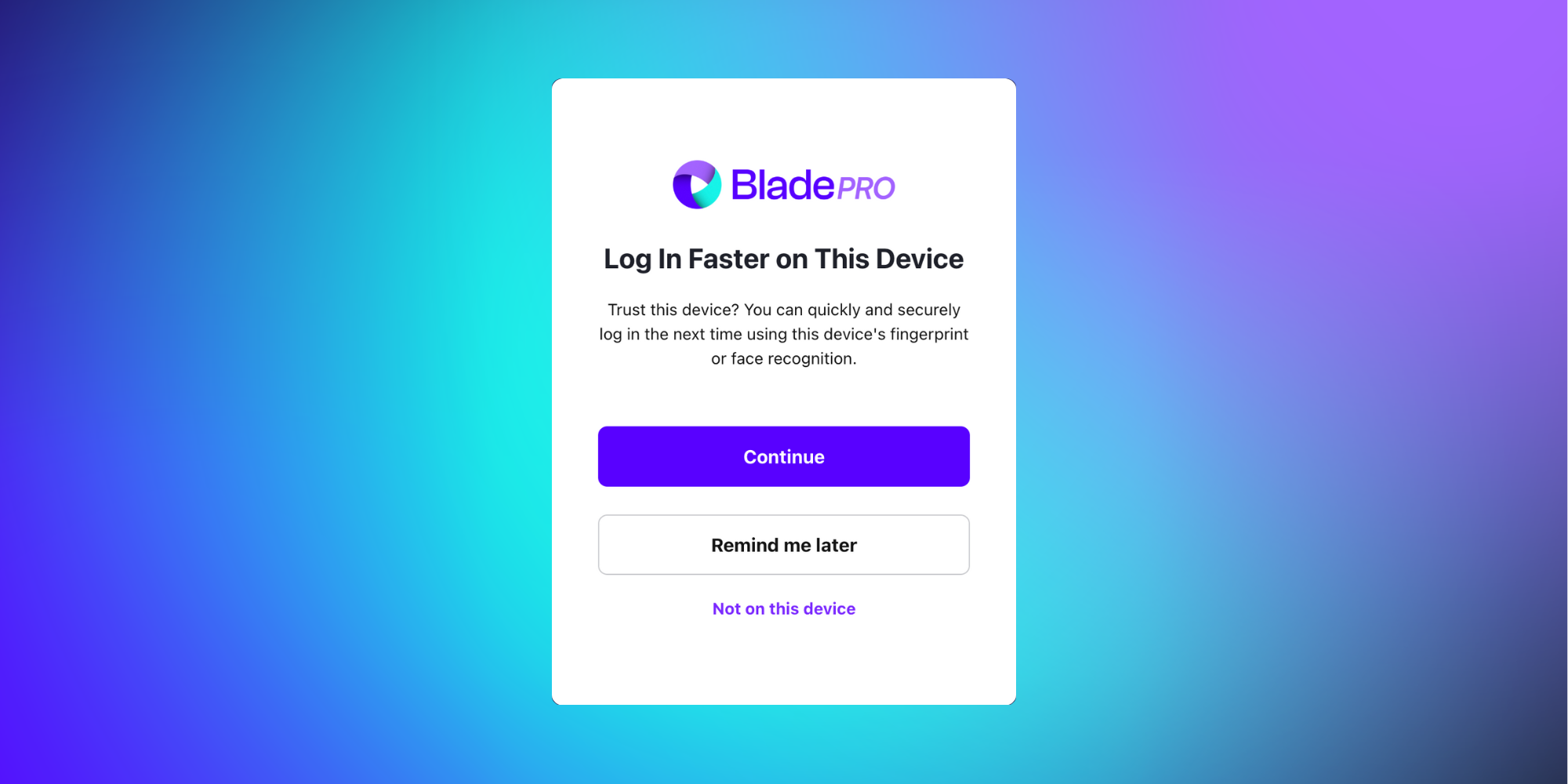
Choose your preferred login method for faster access
Continue to enable biometric login
Remind me later to decide later
Not on this device to skip biometric setup
Signing in with a Security Key
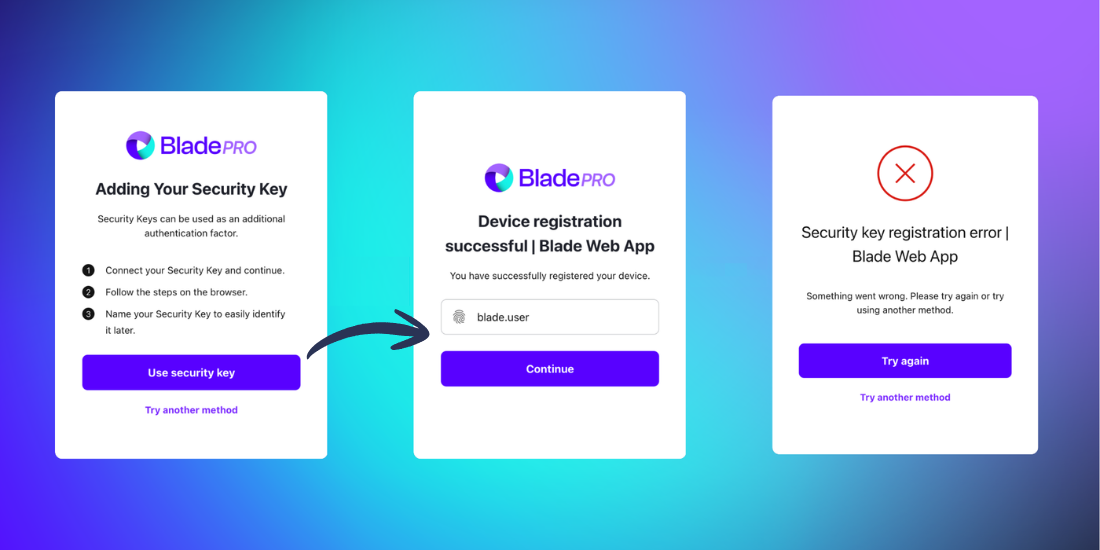
Select Security Key as your MFA method
Follow the browser instructions to register your security key device
Wait for the registration confirmation:
If successful, you'll see Device registration successful
If unsuccessful, select Try again or Try another method
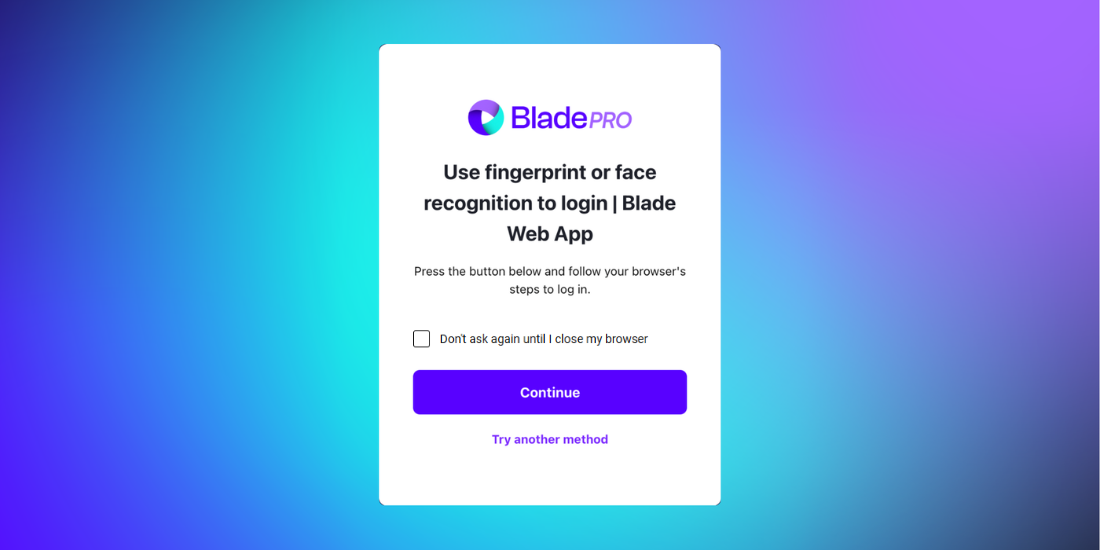
Choose whether to use fingerprint or face recognition
You can also enable biometric login (fingerprint or face recognition) for faster access.
Continue to proceed to biometric login setup through your browser
Try another method to go back to the previous screen
Don’t ask again until I close my browser to save your preferences for your current session
Related articles
Still need help? Share an idea