Managing order timelines
The order timeline tracks every update to an order as it moves through your warehouse workflow. You can view the complete history of an order, filter to find specific information, and add your own messages to maintain a clear record of order handling.
Last updated About 2 months ago
Access your order timeline
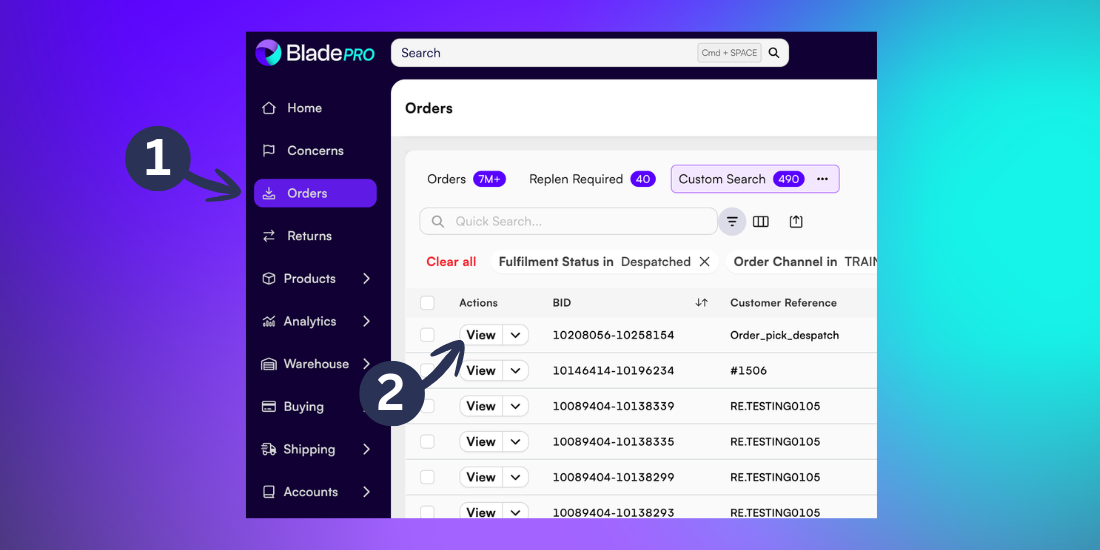
To access the timeline for a specific order, click Orders from the left menu
Locate the order from the Orders page, then click View.
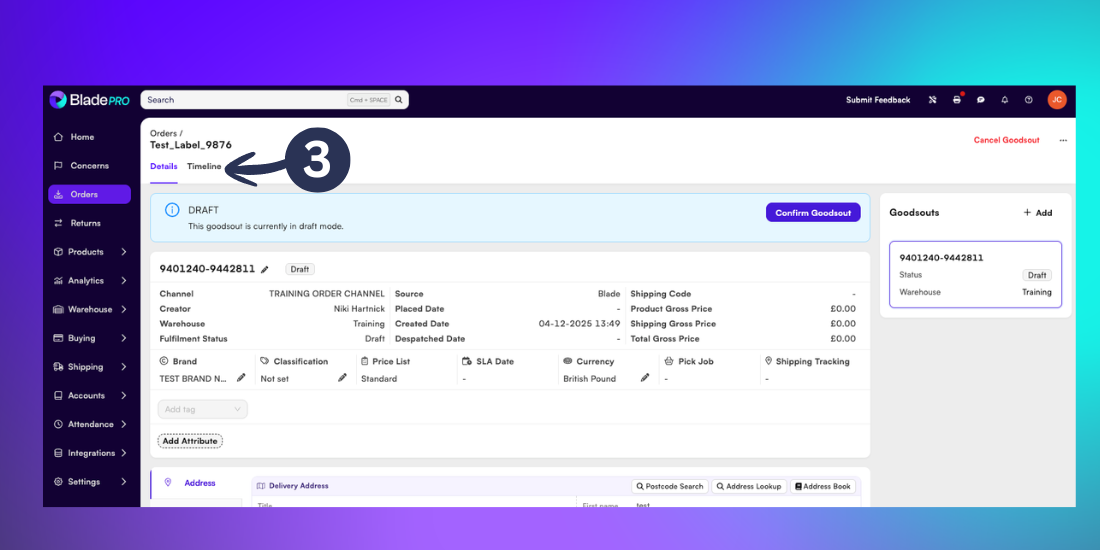
Once inside the order Details page, click Timeline.
Filter timeline entries
Each entry in your order timeline displays:
The Goodsout number
The type of action
The Date and time
The Organisation
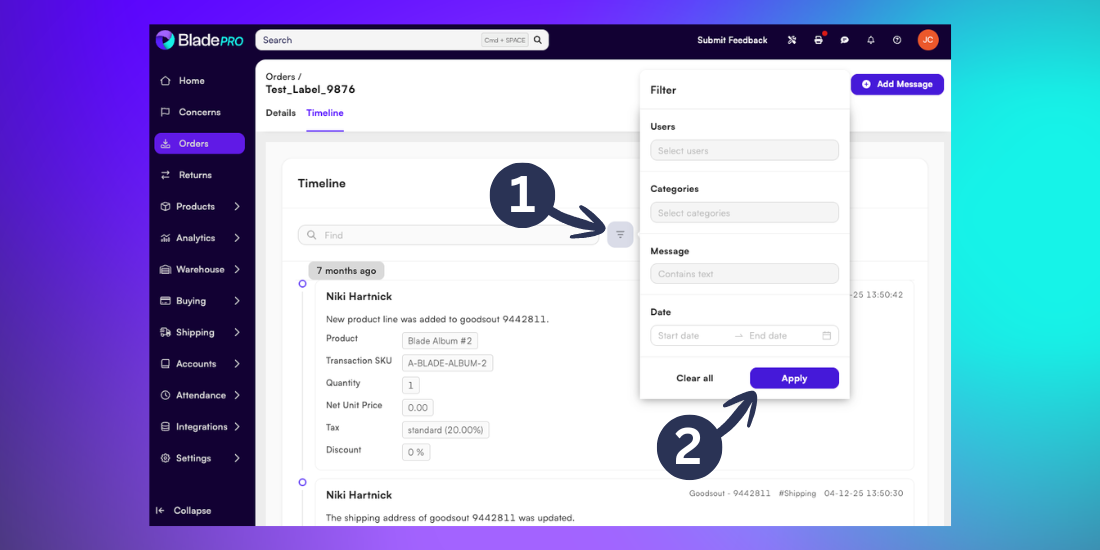
The most recent updates appear at the top of the timeline. Use filters to quickly find specific timeline information.
Click the Filter icon at the top of the timeline
Select your filter options, then click Apply
Available filter options include:
Users - Show entries from specific BladePRO users
Categories - Display entries from specific categories (Products, Shipping, Tags, Goodsout, or Order)
Message - Search for entries containing specific words or phrases
Date - View entries within a date range
Tip: You can combine multiple filters to narrow down your search. For example, filter by both a specific user and date range to see what actions they took during that period.
Add messages to the timeline
Keep your team informed by adding notes directly to the order timeline.
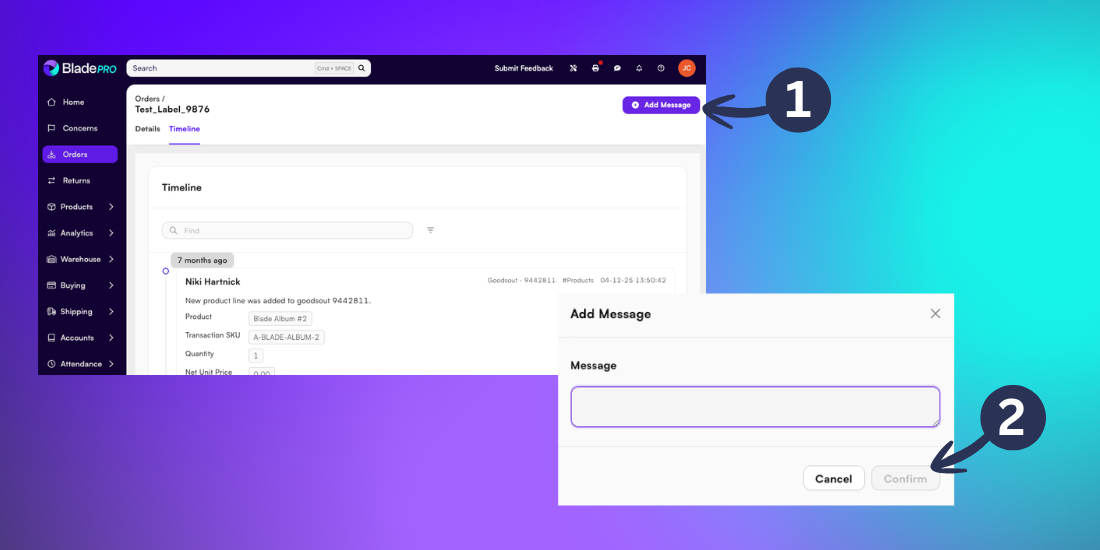
Click + Add Message at the top of the timeline
Type your message into the text field then click Confirm to save your message to the timeline
Tip: Add messages to document important order decisions, customer communications, or special handling instructions. These messages become part of the permanent order record and help your team understand the full context of any order.