Managing Batch Codes
Batch Codes are unique identifiers used to group items that are produced, received, or handled together. They are frequently used for perishable products or electronics. Batch Codes are essential for traceability, allowing production dates and expiry dates to be tracked and monitored.
Last updated 4 months ago
To review batch codes you’ll need to open your product from the Product List by searching or filtering results.
Not sure how to find your product? Revisit our support article here
Viewing Batch Codes
Once you’ve opened your product, go to the Stock page and open the Batch Codes tab from the left menu.
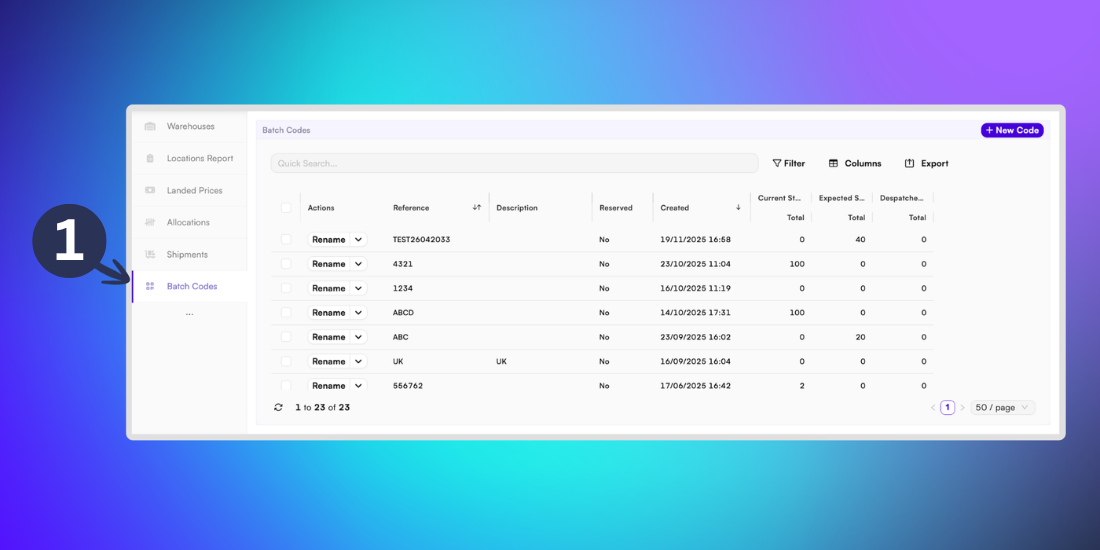
In this page you can view the active Batch Codes for the specific product. This page includes a breakdown of the following criteria for easy tracking:
Reference: The Batch Code reference number
Description: A short summary of the Batch Code
Reserved: A Batch Code that has been reserved for a specific purpose, such as a large order.
Created: Date and time that the Batch Code was created
Current Stock
- Total: The number of product units that are inside the batch.
- Warehouse Current Stock: The number of units in a chosen warehouse.Expected Stock
- Total: The total number of stock expected to be in this batch, based on data in BladePRO.
Tip: You can rename the reference of a batch code by clicking the Rename button in the actions column.
Searching and filtering
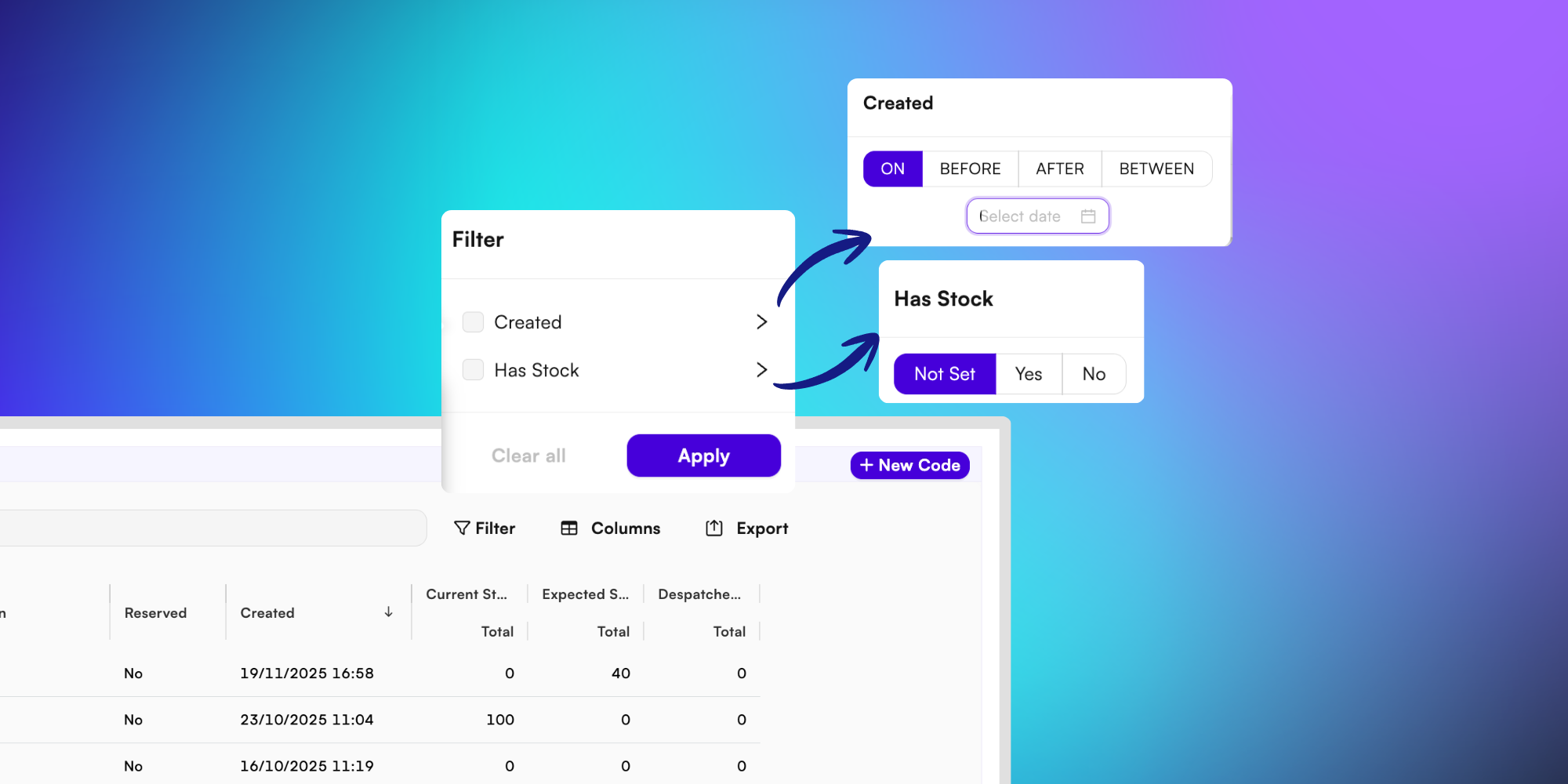
If you know the Batch Code that you want to view, use the Quick Search bar to quickly locate it in the Batch Code page by using the reference number, or use the Filter option to refine the Batch Code list by a date range or stock level.
Customise columns
You can customise the table further by clicking the Columns button and selecting the boxes next to the fields you want to display.
Exporting Batch Code data
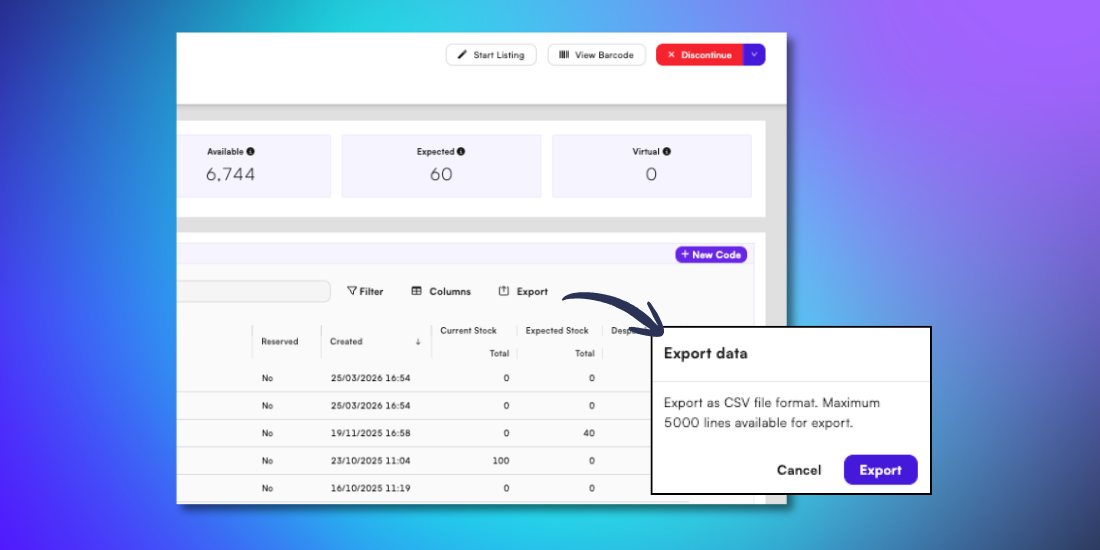
Click Export in the Batch Code page to download the data table to your device in a .CSV format. Confirm the export by selecting Export again from the popup menu.
Freezing/Unfreezing Batch Codes
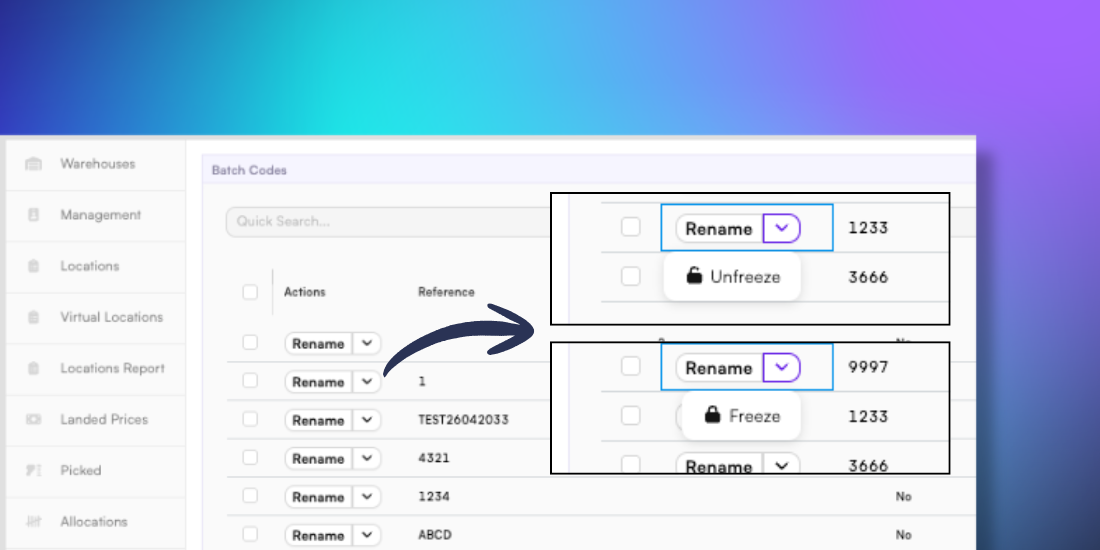
If there are issues with a batch of products you can to freeze the Batch Code to prevent any orders from being despatched.
In the Batch Code page, click the arrow next to the Rename button in the action column and then click Freeze.
To unfreeze a batch and release products for despatch, click the arrow next to the Rename button in the action column and then click Unfreeze.
Creating a new Batch Code
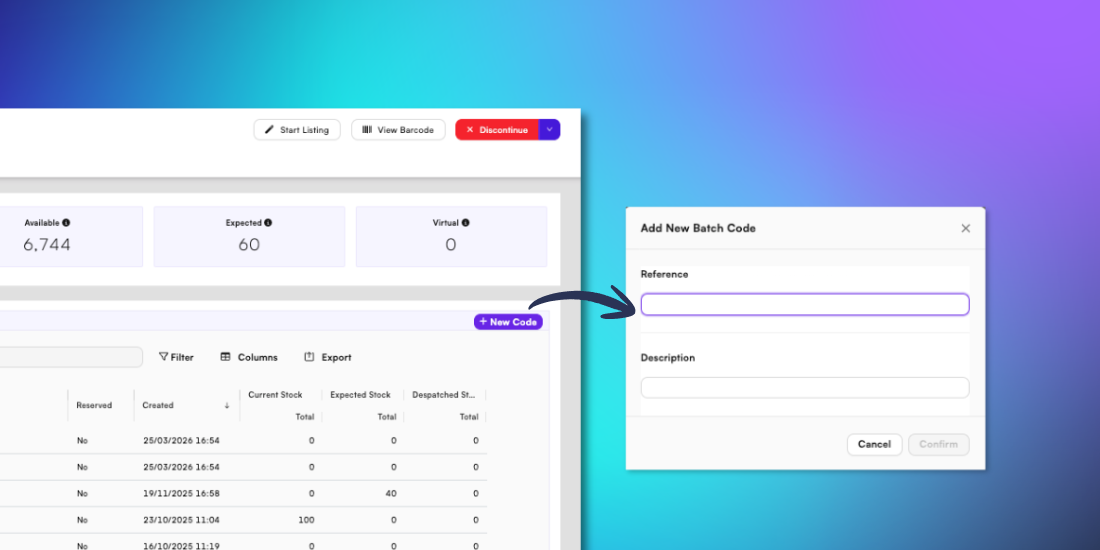
To create a new Batch Code click the +New Code button in the Batch Code page. Input a unique reference, as well as a description and then click Confirm to save.
This will add it to the list of Batch Codes for that product.
Editing the Batch Code for a product
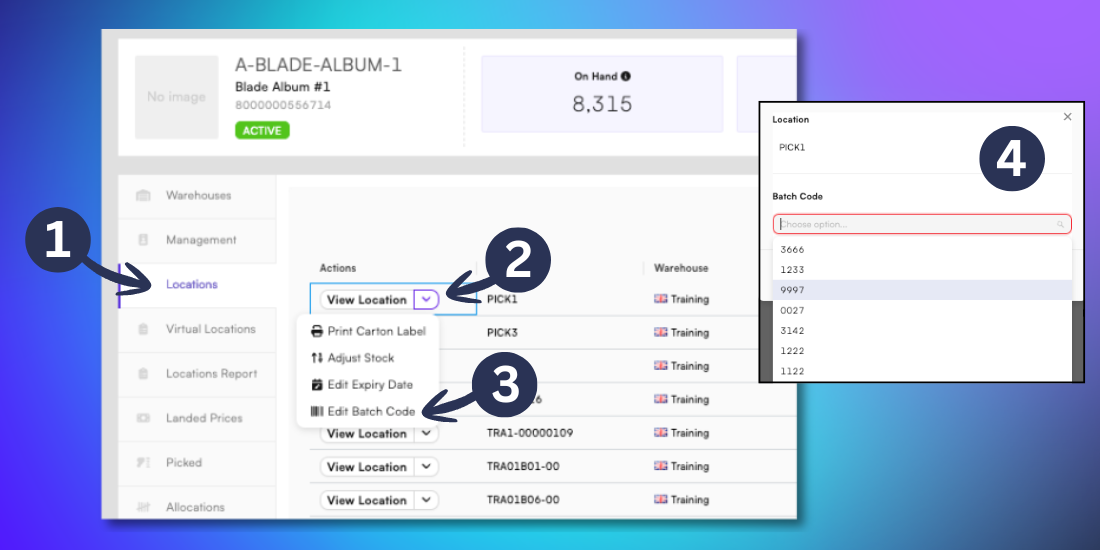
After creating a new Batch Code you may need to assign it to products in your inventory. To change the Batch Code of a product:
Go to the Stock page for the product and then click the Locations tab from the left menu.
For the location that you wish to change, click the dropdown arrow in the Actions column
Click Edit Batch Code
Select the chosen Batch Code from the dropdown list, then click Confirm.
Tip: If no results display when editing a Batch Code, Batch Codes may not have been enabled for this product. To check and update product classifications view our support guide here
Related articles
Viewing shipments for a product - BladePRO
Still need help? Share an idea