Viewing your Dashboard
The BladePRO Dashboard uses real-time warehouse, sales, inventory, and purchasing data to provide an overview of relevant information at a glance, without jumping between multiple reports. You can use the BladePRO Dashboard to quickly check your shipments, revenue, stock and returns.
Last updated 3 months ago
Accessing your Dashboard
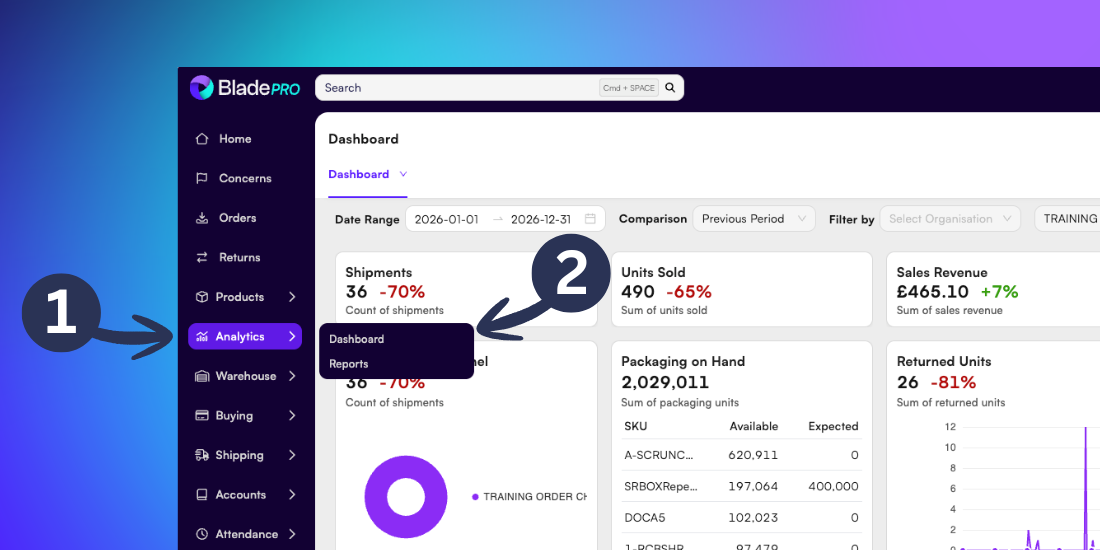
To access your Dashboard, click Analytics in the left menu.
Then click Dashboard from the options.
This will display the current dashboard with the standard data widgets applied.
Tip: Drag your cursor over the charts to interact with chart widgets, allowing you to exploring specific data points and metrics.
Filtering dashboards
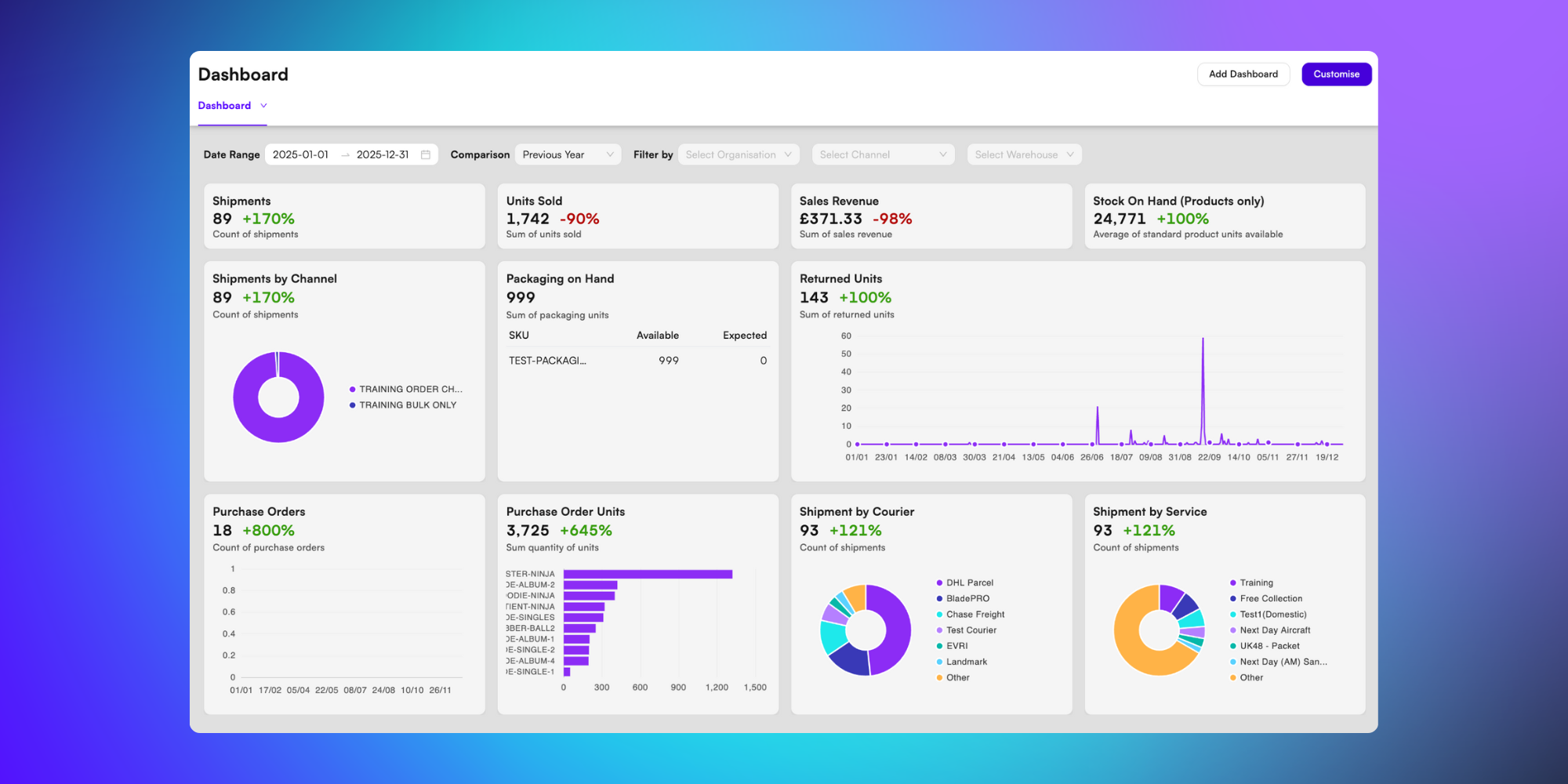
In the Dashboard page you can apply the following filters:
Date range - Select a starting date and an end date from the calendar menus to view data inside a specific date range.
Comparison - Choose Off to remove comparison data, or choose Yes to compare chart data with a Previous Period or Previous Year. This will add % change measurements to your charts.
Filter by - Choose to refine dashboard data by Organisation, Channel and/or Warehouse, by selecting relevant options from the dropdown menus.
Related articles
Still need help? Share an idea